In beta
Quartermaster on Apple TV.
Your server on the big screen, with a player of its own and a profile for everyone in the house. It's in beta now with testers from our Discord, and it isn't on the App Store yet.
- Oracle, its own player
- Jellyfin, Emby and Plex
- Set up from your iPhone
- tvOS 18 or later
- Part of Pro
Oracle, our own player.
Apple's own player can't open an MKV, decode TrueHD or DTS, or show Blu-ray subtitles, so files like that usually get converted on the server before they reach an Apple TV.
Oracle reads the original file and plays it as it is. It's built on FFmpeg 8.1 for reading files and on the Apple TV's own decoders and renderers for everything they handle, and it's the default player in the beta.
- Files
- The original file, straight from Jellyfin, Emby or Plex. MKV, MP4 and transport streams all open, and nothing gets converted on your server.
- Video
- HEVC and H.264 go to the Apple TV's hardware decoders. VC-1 and MPEG-2 decode in software, and interlaced TV recordings are deinterlaced.
- HDR
- HDR10 and Dolby Vision. Profiles 5 and 8.1 go straight through, and profile 7, the kind on UHD Blu-ray rips, is rewritten to 8.1 on the fly.
- Audio
- Dolby Digital and Dolby Digital Plus go through Apple's decoders. TrueHD, DTS, DTS-HD MA and FLAC are decoded on the Apple TV and sent out as multichannel PCM.
- Subtitles
- Text subtitles keep their styling, ASS and SSA included. Picture subtitles from Blu-rays and DVDs (PGS and VobSub) show as they are, and forced lines still show with subtitles off.
- While you watch
- Swipe down for audio, subtitles, chapters and Playback Info, which shows the decoder, the HDR format and the audio path in use. Scrubbing shows pictures, intros skip, and Up Next rolls into the next episode.
- Back to your server
- The Apple TV shows up in Jellyfin's Now Playing, and your place and watched state go back to the server.
- Apple's player too
- Prefer Apple's player? It's one switch in Settings, and a file the engine can't take goes to Apple's player instead.
For everyone in the house.
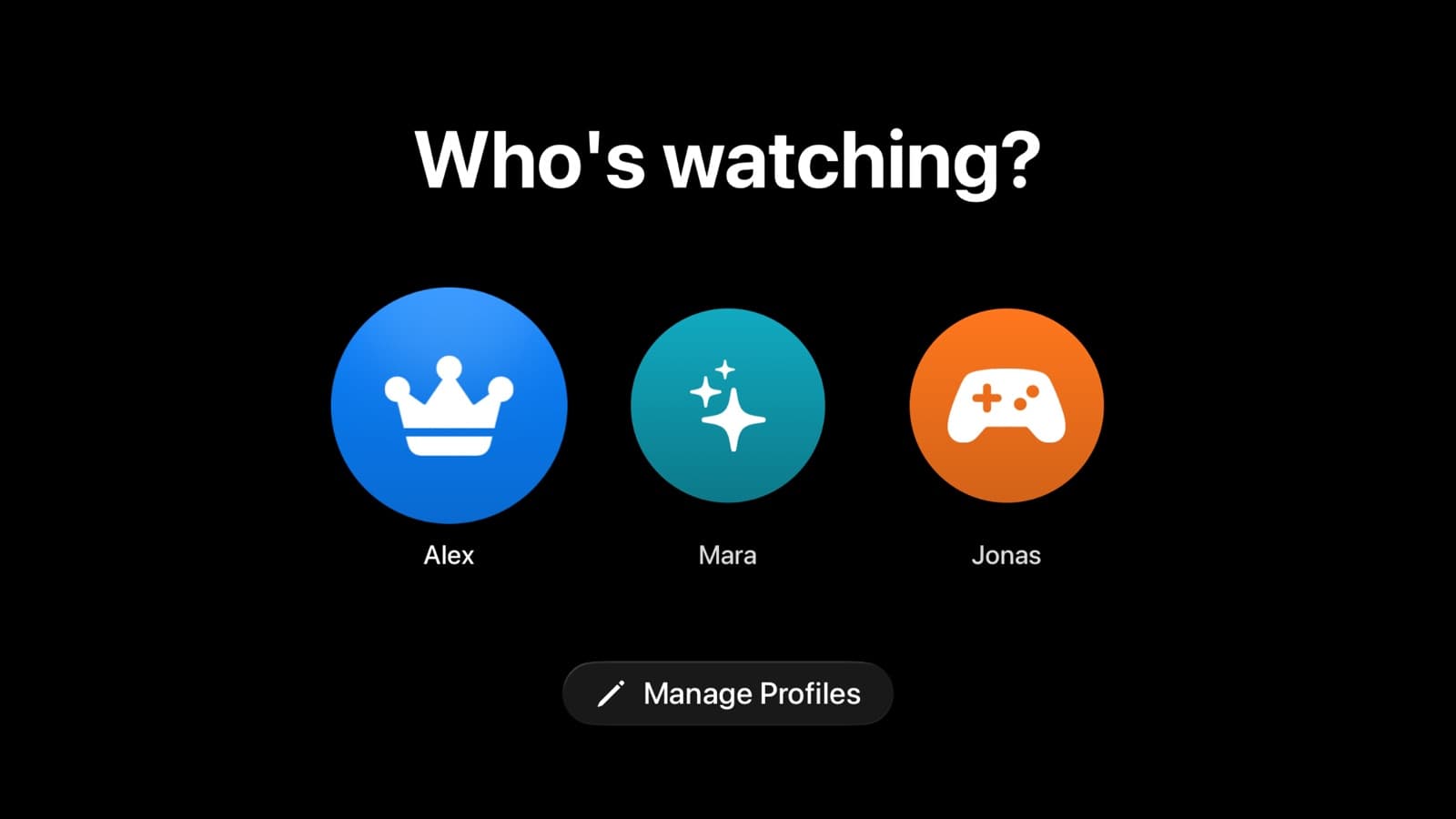
- Who's watching
- Everyone with an account on your Jellyfin or Emby server gets their own profile. Admins open with a 4-digit PIN. Everyone else goes straight in, sees only what their own account can see, and requests in their own name.
- A Home for whoever's watching
- Their Up Next comes first, then what's on its way: downloading, airing today and arrived this week. Then shelves to browse, and the library by genre and decade.
- Request from the sofa
- Discover shows what you don't have yet, and follows your Seerr's own hide settings. Hold a poster to request it, and choose the seasons you want.
- Clear some space
- If your Jellyfin account may delete media, remove a film, a whole series or just some seasons. They're switched off in Sonarr first, so they don't come straight back.
- Up Next on the Home Screen
- The top row of the Apple TV Home Screen shows Up Next for whoever watched last, admins aside.
- Make it yours
- An icon for everyone in Manage Profiles, synced to every Apple TV in the house without touching your server. Automatic, Light or Dark with an accent colour, and three text sizes.
The Command Centre, for admins.
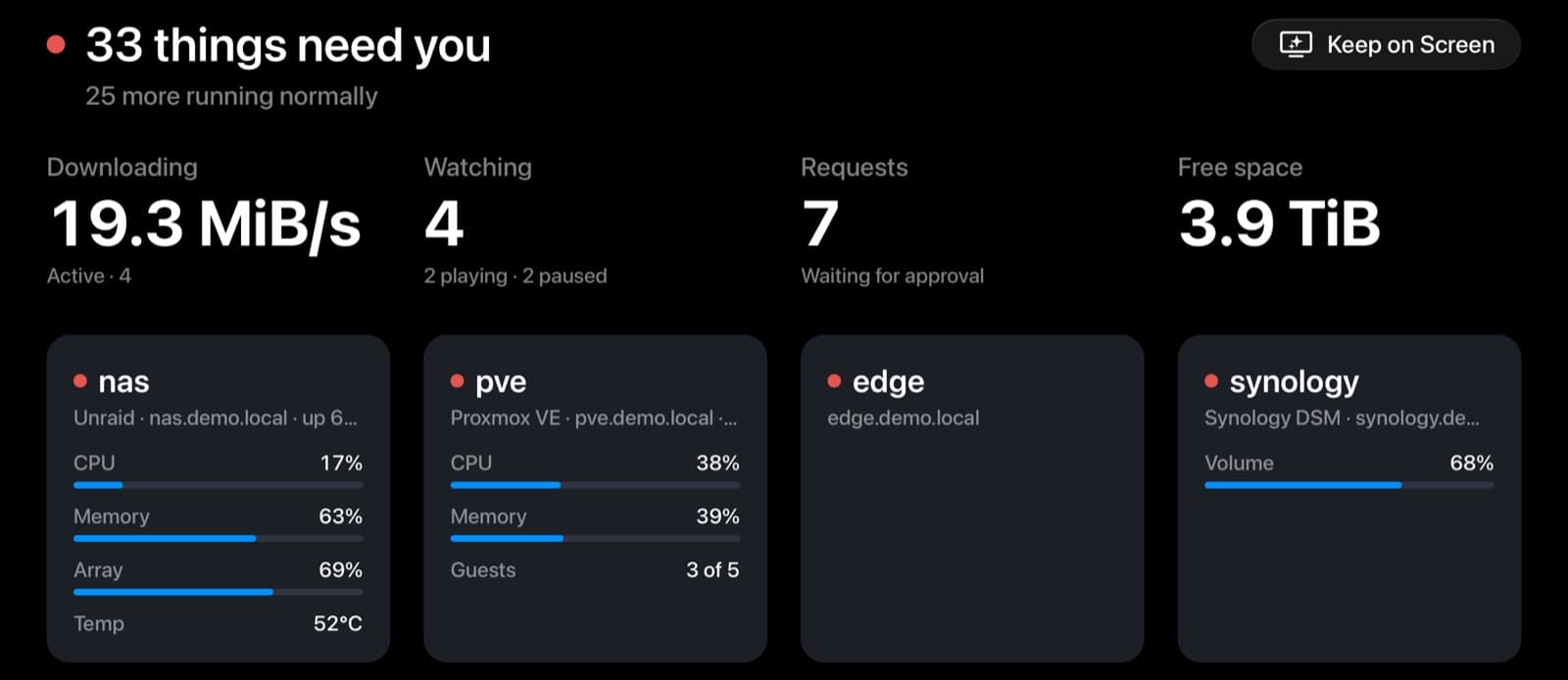
Admins get the Command Centre on the TV: your services and containers as tiles, your machines, Now Playing, downloads and requests, with whatever needs you at the top. Keep on Screen holds it there.
The Command Centre and the Calendar only open for admins. A server with a self-signed certificate can be trusted from its own page, once you've seen its fingerprint.
Set it up from your iPhone.
Turn on iCloud Sync
On your iPhone, update to Quartermaster 1.3 and turn on iCloud Sync in Settings. The Apple TV needs to be signed in to the same Apple Account.
Open it on the TV
Quartermaster on the Apple TV shows a six-digit code and a QR.
Pair from your iPhone
In Settings, choose Apple TV, then type the code or scan the QR. Your iPhone sends your sync passphrase sealed to that one Apple TV, through your own iCloud, and the TV restores your setup from your iCloud Sync copy.
- There's nothing to type on the TV, and none of it goes through our servers.
- Someone else signed in on the same Apple TV gets the same setup and admin PIN without doing a thing.
- No iPhone set up yet? Choose Try the Demo on the welcome screen.
The beta.
It runs on TestFlight with testers from our Discord. Already use Quartermaster with Pro and want in? Ask in the Discord. It's a beta, Oracle included, so if a file doesn't play right, #tvos-bug-reports there is where to say so, with a photo or video if you can.
Part of Pro.
Free to download once it's on the App Store, and part of Pro: Pro bought on your iPhone opens it on an Apple TV signed in to the same Apple Account. During the beta it follows the Pro on the iPhone that set it up.
It starts on your iPhone.
The Apple TV app takes its setup from Quartermaster on your iPhone, so that's the place to begin. It's on the App Store now.
Download on theApp StoreAlso new: what's in Quartermaster 1.3.